Operation
This section explains the main screen and day-to-day use: reading and sending messages, the node list, alerts and working with more than one radio.
Screen Layout
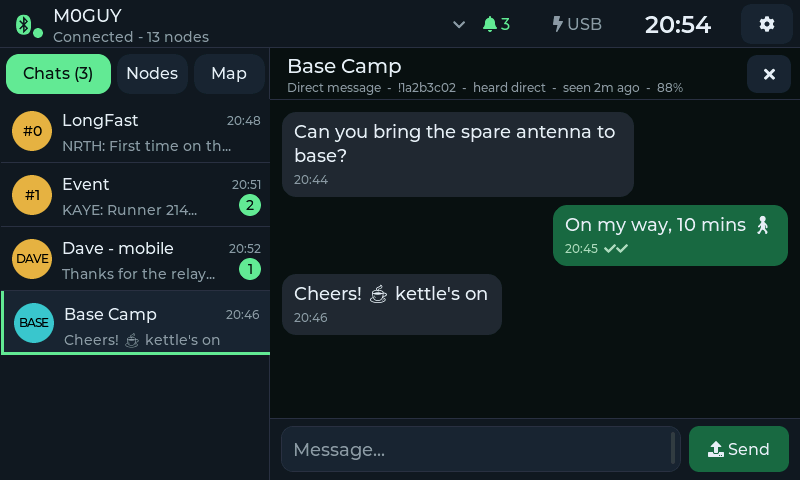
The main screen with a direct-message conversation open.
The screen has three parts:
Top bar — your radio and its link status, unread messages, the radio's power, the clock and the Settings button
Sidebar (left) — your Chats, the Nodes list and the Map
Conversation (right) — the open chat and the message box
The layout is the same in every theme; only colours, fonts and some wording change (see Theme).
The Top Bar
From left to right:
Item |
Meaning |
|---|---|
Bluetooth icon and dot |
Link to your radio: green dot = connected, grey = not connected |
Radio name |
The radio MeshDisplay is paired with. Tap it to open the Radios page (pair, switch or disconnect radios) |
Status line |
|
Bell and number |
Unread messages across all chats (hidden when there are none) |
Power |
Your radio's battery level, or USB when it is on external power |
Clock |
Local time (see Time Zone) |
Gear |
Opens Settings |
Chats
The Chats tab lists your channels first, in channel order, followed by your direct-message conversations with the most recent at the top. Each row shows:
a badge —
#0,#1... for channels (the channel number), or the other person's short name for direct messagesthe chat name — the channel name (
LongFastfor an unnamed primary channel) or the other node's long namethe time of the last message and a preview of it
a green count of unread messages
The tab title shows the total unread count, for example Chats (3).
Tap a chat to open it. Opening a chat marks its messages as read.
Channels
Channels are set up on your radio (with the Meshtastic app or CLI); MeshDisplay shows every channel the radio has, up to the Meshtastic maximum of eight. A message on a channel goes to everyone on the mesh who shares that channel and its key.
The conversation header shows the channel name and a reminder that messages go to everyone on the channel.
Direct Messages
A direct message (DM) goes to one node only. Meshtastic encrypts it for that node and asks it to confirm delivery.
To start a DM, open the Nodes tab and tap the person's node, or tap a node on the Map and tap Message. The conversation header shows the node's ID, how many hops away it is, when it was last heard and its battery level.
Reading Messages
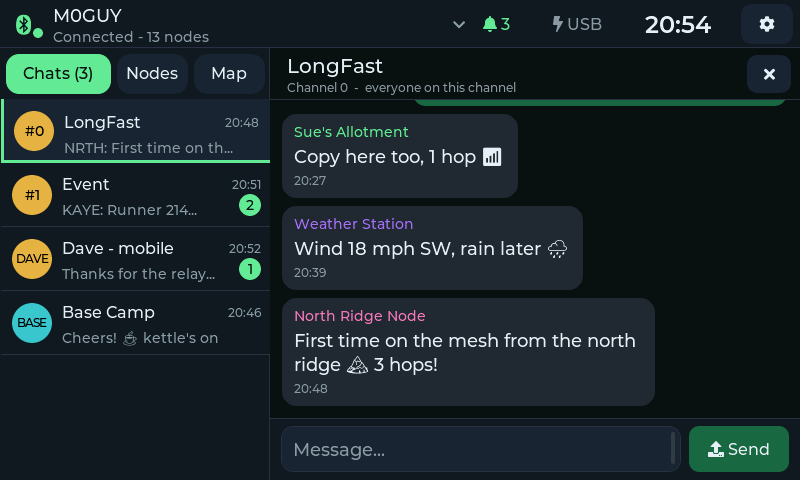
A channel conversation.
Incoming messages are on the left, with the sender's name in their own colour.
Your messages are on the right.
Under each message are its time and, for your messages, its status:
Status
Meaning
(no tick)
Handed to your radio, waiting to go out
✓
Sent — the mesh accepted it (another node repeated it, or a channel message was transmitted)
✓✓
Delivered — the destination node confirmed it (direct messages only)
✕ not delivered
The radio gave up; the message did not reach the mesh or the destination. Shown in red
Scroll the conversation by dragging it up or down. The most recent 60 messages of each chat are shown.
Tap ✕ at the top-right of the conversation to close it.
Emoji in messages are shown in the theme's text colour.
Sending Messages
Open a chat.
Tap the message box. The on-screen keyboard slides up and the conversation moves up above it.
Type your message and tap Send (next to the message box).
Messages can be up to 200 characters (emoji use several characters each). The keyboard stops accepting text at the limit.
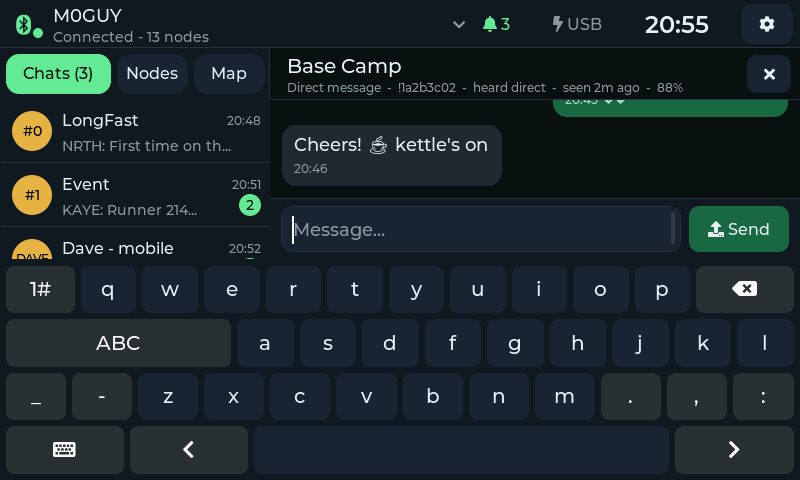
The on-screen keyboard.
The On-Screen Keyboard
Key |
Action |
|---|---|
1# |
Numbers and symbols; abc returns to letters |
ABC |
Capital letters; abc returns to lower case |
⌫ |
Delete the character before the cursor |
< > |
Move the cursor left and right through the message |
⌨ |
Hide the keyboard (your text is kept) |
Space bar |
Space |
The letter layouts also have _ - . , : keys; the symbols layout has the rest of
the punctuation. Tap anywhere in the message box to place the cursor. To close the
keyboard without sending, tap the keyboard key at the bottom-left.
Note
You can only send while MeshDisplay is connected to your radio. When the link is down the message box shows Not connected to a radio.
Nodes
The Nodes tab lists every node your radio knows about.
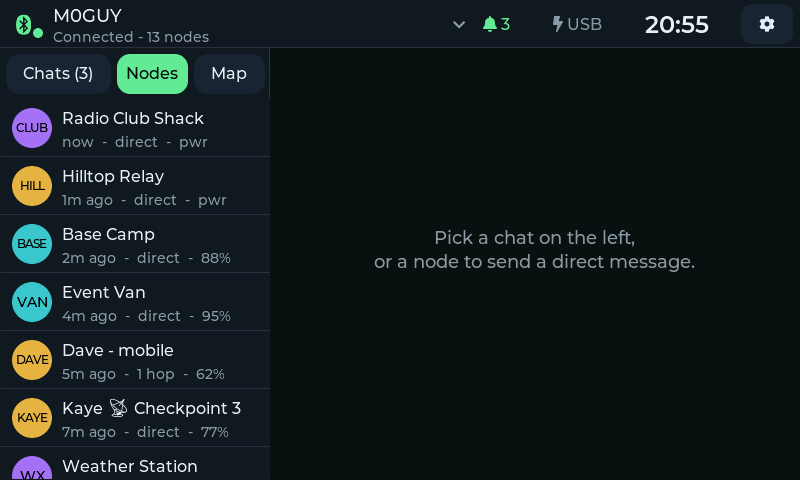
The Nodes list.
Each row shows the node's short name, its long name (with ✓ for nodes marked as favourites on your radio) and:
when it was last heard (
now,5m ago,3h ago...)how far away it is in the mesh:
direct(heard directly by your radio) or the number of hopsits battery level, or
pwrif it is on external power
Tap a node to open a direct-message conversation with it.
New-Message Alerts
When a message arrives in a chat that isn't open, a pop-up appears near the top of the screen for about seven seconds with the sender and the start of the message.
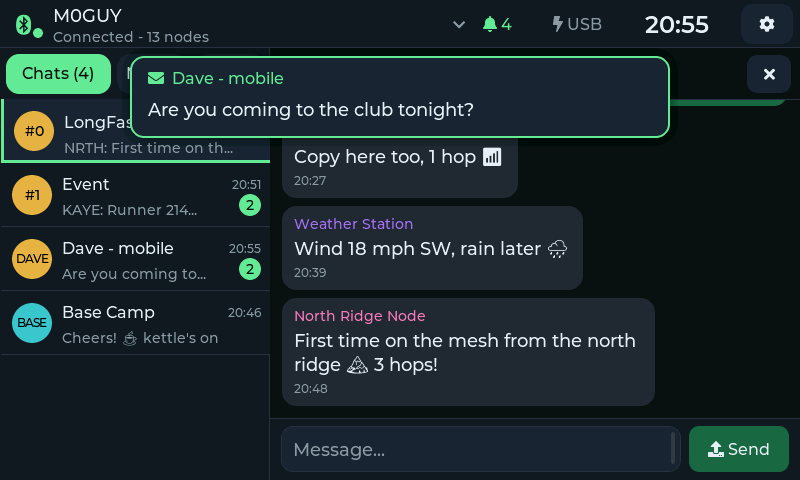
A new-message alert. Tap it to open the conversation.
Tap the pop-up to open that conversation.
Direct messages and channel messages have separate alert switches, and the screen can be woken for alerts. See Alerts.
Messages always arrive in the chat list and raise the unread count, whether or not a pop-up is shown.
Your radio can also send notices (for example about its own configuration); these appear in the same way, titled Radio.
Screen Off and Wake
To save power and avoid image retention, the screen can switch off after a period without use (see Screen Off After). Touch the screen to turn it back on — the first touch only wakes the screen and does not press anything. With Wake screen for alerts on, a new message also turns the screen on.
Working with Several Radios
MeshDisplay remembers up to eight paired radios, each with its own message history. Only one is connected at a time.
Open the Radios page by tapping the radio name in the top bar:
Connect on a paired radio switches to it. MeshDisplay disconnects the current radio and loads the other radio's chats and history.
Disconnect (on the connected radio, or in the status bar) closes the link and stops automatic reconnection until you connect again — for example so you can use the Meshtastic phone app with the radio for a while.
The bin icon forgets a radio. MeshDisplay asks first:
Forget Meshtastic_2d1f?
This removes the pairing and its message history from this display.

[ Forget ]   [ Cancel ]
To pair it again later, scan and enter its PIN as in Getting Started.
Tip
If you forget a radio on MeshDisplay, also remove MeshDisplay from the radio's paired devices (or reset the radio's Bluetooth bonds) before pairing again, or the radio may refuse the new pairing.
Message History
MeshDisplay keeps the messages it has seen in its own flash storage, separately for each radio, so they are still there after a restart or after switching radios. The newest 1,500 messages per radio are kept; older ones are removed automatically.
Messages sent or received while MeshDisplay was not connected are not in its history, although your radio may pass on recent ones when it reconnects.