MQTT Gateway
Meshtastic radios can link the mesh to the internet over MQTT: messages are copied to an MQTT server ("broker"), where they can reach other meshes, home automation, logging tools or public mesh maps. Normally the radio needs its own Wi-Fi connection, or a phone running the Meshtastic app, to do this.
MeshDisplay's MQTT gateway does the job instead: your radio passes its MQTT traffic to the display over Bluetooth, and the display carries it to the broker over its Wi-Fi. This is Meshtastic's MQTT client proxy mode.
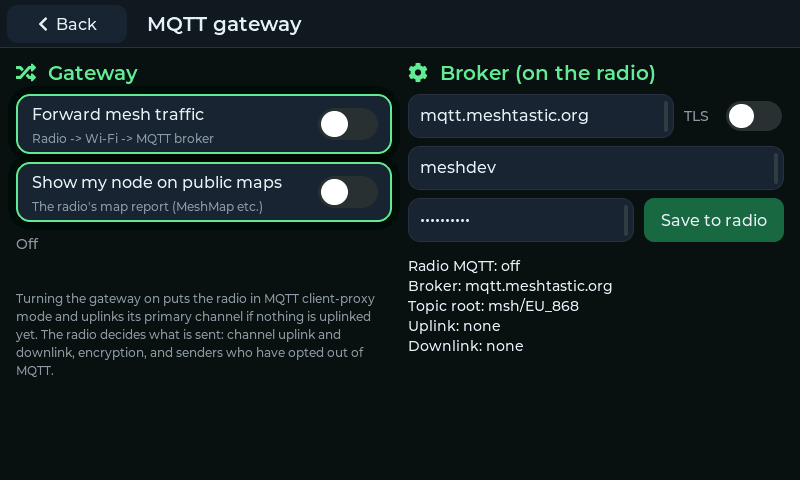
The MQTT gateway page.
Before You Start
MeshDisplay must be on Wi-Fi (see Getting Started) and connected to your radio.
Decide which channels should be shared. What goes to the broker is decided by your radio's channel settings: only channels with uplink enabled are sent, and only channels with downlink enabled receive traffic from the broker.
Messages on the default public broker can be seen by anyone. Leave uplink off on any private channel you don't want shared, and remember that people on the mesh can opt out of MQTT on their own nodes.
Turning the Gateway On
Open Settings and tap Set up on the MQTT gateway row.
Turn on Forward mesh traffic.
If your radio's MQTT isn't set up for this yet, MeshDisplay sets it up for you: it turns on the radio's MQTT module in client-proxy mode and, if no channel is uplinked yet, enables uplink on your primary channel. The radio saves the change and restarts; MeshDisplay reconnects automatically. The status line reads Sent to the radio - it restarts to apply the change... while this happens.
Downlink is never turned on automatically: messages arriving from the broker are transmitted over the air by your radio, so enable downlink on a channel only when you want that.
Gateway Status
The status line under the switches shows what the gateway is doing:
Status |
Meaning |
|---|---|
Off |
The gateway switch is off |
Waiting for the radio |
No radio connected yet |
The radio's MQTT is not in gateway mode |
The radio's MQTT module is off or not in client-proxy mode (turn the switch off and on) |
Needs Wi-Fi |
The display is not on Wi-Fi |
Connecting to ... |
Connecting to the broker |
Connected to ... - N up, N down |
Working; counts of messages sent to and received from the broker |
Can't reach ... - retrying in N s |
The broker can't be reached; MeshDisplay retries with increasing delays (up to 5 minutes) |
... refused the login - retrying |
Wrong username or password for the broker |
On the right, Broker (on the radio) shows your radio's current MQTT settings: on or off, the broker address, topic root, and which channels have uplink and downlink.
Showing Your Node on Public Maps
Turn on Show my node on public maps to enable your radio's map report. The radio periodically publishes its name, firmware and position (at the precision set on the radio) for community mesh maps. Turn it off to stop.
Using Your Own Broker
By default the radio uses Meshtastic's public broker (mqtt.meshtastic.org). To use
another broker, fill in the fields under Broker (on the radio):
Address — the broker's host name, optionally with
:port. Leave it empty for the public broker.TLS — turn on for an encrypted connection (port 8883 unless you give a port).
Username and Password — leave empty for the public broker's default login.
Tap Save to radio. The settings are stored on your radio, not on the display — they are the same settings the Meshtastic app shows — and the radio restarts to apply them.
Turning the Gateway Off
Turn off Forward mesh traffic. MeshDisplay stops relaying straight away. The radio's own MQTT settings are left as they are; MQTT traffic simply goes nowhere while no client relays it. To switch MQTT off on the radio as well, use the Meshtastic app.
Note
The gateway only runs while MeshDisplay is connected to the radio and on Wi-Fi. Messages queued during a short Wi-Fi outage are sent when it reconnects; long outages drop the oldest.