Configuration
MeshDisplay's settings are on the Settings page. Settings are stored on the display and kept across restarts and software updates.
The Settings Page
Tap the gear icon at the top-right of the main screen. Scroll the page to see all the rows; tap Back to return.
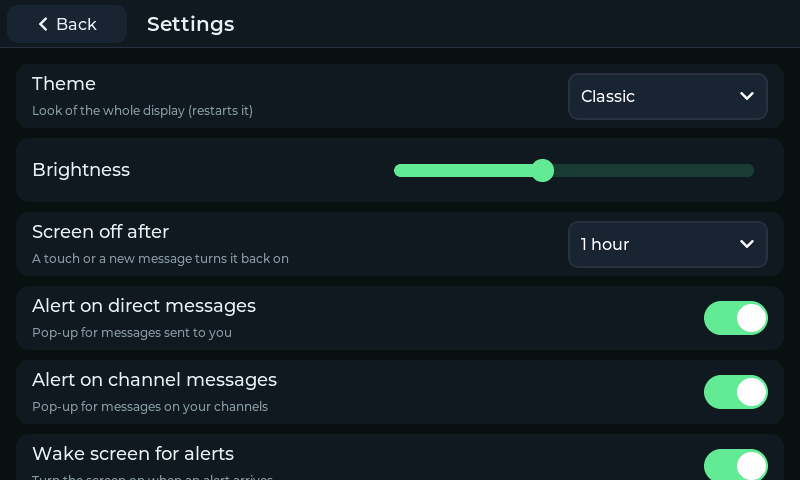
The top of the Settings page.
Row |
What it does |
|---|---|
Theme |
Look of the whole display (restarts it) |
Brightness |
Backlight level (shown on displays with a dimmable backlight only) |
Screen off after |
Turn the screen off after a period without use |
Alert on direct messages |
Pop-up for messages sent to you |
Alert on channel messages |
Pop-up for messages on your channels |
Wake screen for alerts |
Turn the screen on when an alert arrives |
Reconnect automatically |
Reconnect to your radio at start-up and when the link drops |
Time zone |
Zone for the clock |
Rotate screen 180 |
Turn the picture upside down for inverted mounting |
Wi-Fi |
Saved and nearby Wi-Fi networks |
MQTT gateway |
The MQTT gateway page (see MQTT Gateway) |
Software update |
Version, update status and Check now |
About |
Software version, radio details and storage use |
Theme
MeshDisplay has four themes. Each changes colours, fonts, shapes and some wording; the layout and features are the same in all of them.
Theme |
Look |
|---|---|
Classic |
Calm dark messenger with green accents and rounded message bubbles (default) |
Neon |
Futuristic heads-up display: deep black, cyan and magenta, sharp corners, corner brackets and a faint grid |
Console |
Retro control console: black with orange, lilac and blue blocks, an elbow frame, pill buttons and condensed capitals. Chats are COMMS, nodes CREW, the map NAV |
Guide |
Friendly galactic travel guide: deep-space navy, green and orange, rounded shapes and stars. Chats are Sub-Etha, nodes Hitchers, the map Galaxy — and the idle screen tells you not to panic |
Choose a theme from the drop-down. The display restarts to apply it (this takes a few seconds and reconnects to your radio).
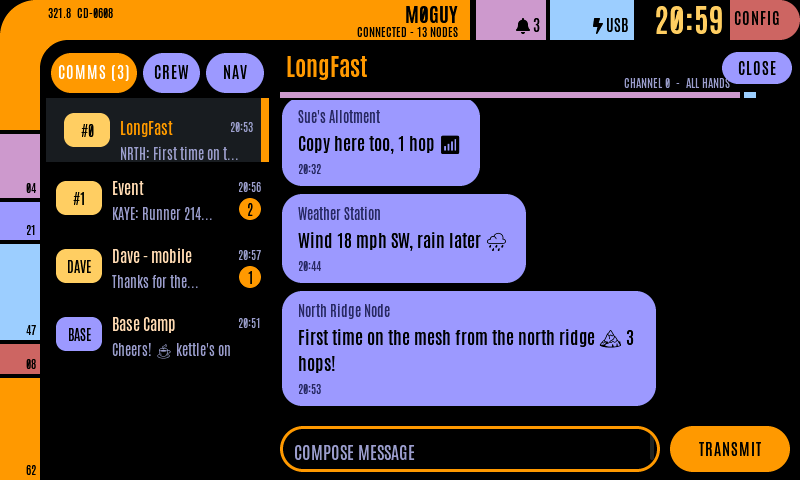
A channel in the Console theme.
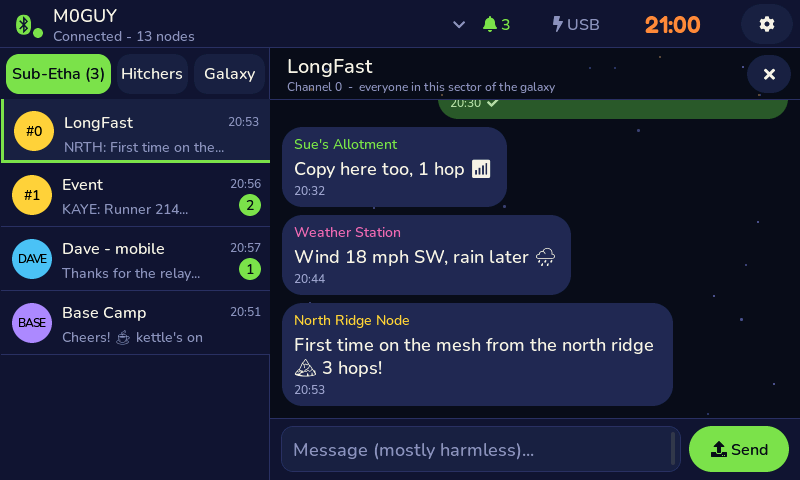
A channel in the Guide theme.
Tip
In the Guide theme, try zooming the map all the way out.
Brightness
Drag the slider to set the backlight from 10% to 100%. The row only appears if your display's backlight can be dimmed; otherwise the backlight is simply on or off.
Screen Off After
Choose Never (the default), 1 minute, 5 minutes, 15 minutes, 30 minutes or 1 hour. After that long without a touch, the screen switches off. Touch it to turn it back on; with Wake screen for alerts on, a new message also wakes it.
Turning the screen off when it isn't needed saves power and avoids image retention on the LCD.
Alerts
Setting |
Effect |
Default |
|---|---|---|
Alert on direct messages |
Pop-up when a direct message arrives |
On |
Alert on channel messages |
Pop-up when a channel message arrives |
On |
Wake screen for alerts |
Turn the screen on when an alert arrives |
On |
On a busy public channel you may prefer to turn channel alerts off and keep direct message alerts on. Unread counts are kept whatever these are set to.
Reconnect Automatically
On (the default): MeshDisplay connects to the last-used radio when it starts and, if the Bluetooth link drops, keeps retrying — after 5 seconds at first, backing off to once a minute.
Off: MeshDisplay only connects when you tap Connect on the Radios page.
Time Zone
The clock is set automatically — from your radio when it knows the time (for example from GPS or a connected phone), and from the internet when MeshDisplay is on Wi-Fi. Choose your zone from the list; summer time is applied automatically.
Available zones: UTC, London (default), Paris/Berlin, Athens, Moscow, Dubai, Mumbai, Bangkok, Singapore, Tokyo, Sydney, Auckland, New York, Chicago, Denver, Los Angeles, Honolulu, Sao Paulo.
Rotate Screen 180
Turn this on if the display is mounted upside down, then tap Restart. The picture and the touch input are both rotated.
Wi-Fi
Tap Set up to manage Wi-Fi networks. See Setting Up Wi-Fi (Optional) in Getting Started.
Up to three networks can be saved. MeshDisplay joins whichever one is in range.
Tap the bin icon next to a saved network to remove it.
Other network... adds a hidden network by name.
Wi-Fi is optional and is not used for messaging. It is used for map backgrounds, software updates, the clock and the MQTT gateway.
Software Update
Shows the installed version and the result of the last update check. Tap Check now to check immediately. See Over-The-Air (OTA) Software Updates.
About
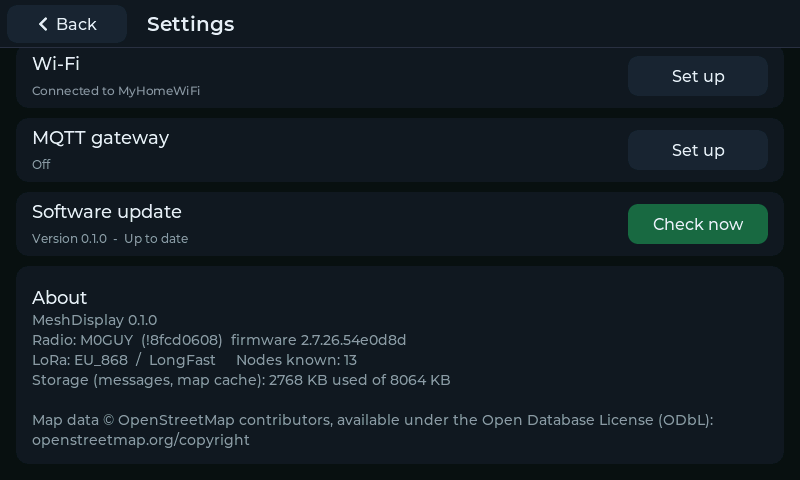
The bottom of the Settings page, with Software update and About.
Shows:
the MeshDisplay software version
the connected radio's name, node ID and Meshtastic firmware version
the radio's LoRa region and modem preset, and how many nodes it knows
how much of the display's storage is used by message history and the map cache
the OpenStreetMap credit and licence notice