Configuration
Where Settings Live
OctoIHD's settings can be changed in two places, and both save to the same place on the device:
On the touchscreen — tap the gear button at the top right.
On the settings website —
http://octoihd.localfrom a phone or computer on your home network (see The Settings Website). The Octopus API key can only be entered here or on the setup hotspot page.
Settings are kept through restarts and power cuts.
The Settings Menu
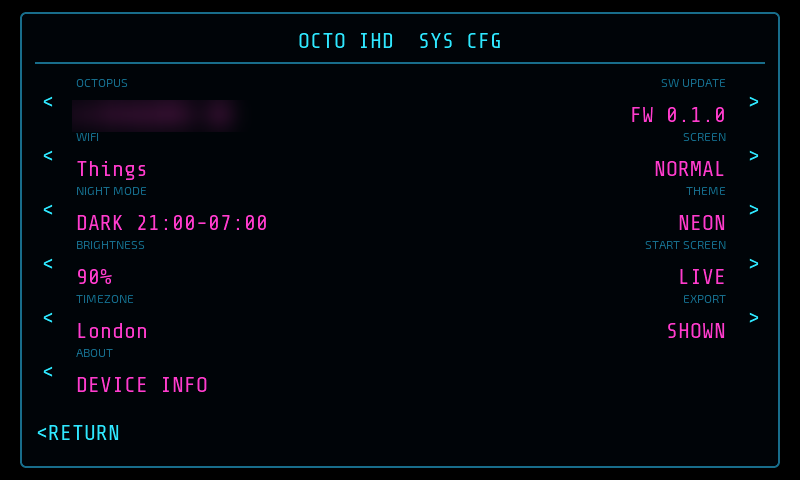
The settings menu (account number blurred).
Tap a row to change it. Tap <RETURN to go back.
Row |
What it does |
|---|---|
OCTOPUS |
Account status. Tap for the account number, masked API key, connection status, tariff and meters. Shows SETUP ON WEB until an account is entered. |
WIFI |
The connected network. Tap to manage saved networks. |
NIGHT MODE |
The night schedule, e.g. |
BRIGHTNESS |
Backlight level. Tap for a slider (FIXED on hardware whose backlight can't be dimmed). |
TIMEZONE |
The local time zone. Tap to choose. |
ABOUT |
Device information. |
SW UPDATE |
The firmware version. Tap to check for an update now. |
SCREEN |
NORMAL or 180 FLIP. Tap to toggle. |
THEME |
The display theme. Tap to choose. |
START SCREEN |
The screen shown at power-on and after night mode. Tap to cycle LIVE, DAY, WEEK, MONTH, BILL. |
EXPORT |
SHOWN or HIDDEN: whether export appears on the screens. |
Octopus Account
The account number and API key are entered on the settings website (or the setup hotspot page):
Account number — looks like
A-1234ABCD.API key — starts with
sk_live_. Once saved, the key is never shown again: the website shows only its last four characters (sk_live_...ab12). Leave the box blank to keep the saved key.
Tap Save & test connection. OctoIHD looks up your account and lists the meters it found under Meters found, marking those read by your Home Mini. If you have more than one gas (or electricity) meter, choose the right one and tap Use these meters.
Changing to a different account number clears the stored meters and history, and downloads them again for the new account.
Supported Tariffs
OctoIHD recognises your tariff automatically and names the bands to match:
Tariff |
How it is costed |
|---|---|
Flexible, Fixed |
One unit rate |
Intelligent Octopus Go |
Off-peak 23:30–05:30, plus smart-charge slots at the off-peak rate (IOG slots) |
Octopus Go |
Off-peak 00:30–05:30 |
Snug |
Off-peak 00:30–06:30 |
Cosy |
Cosy, day and peak rates through the day |
Flux / Intelligent Flux |
Off-peak, day and peak rates (import and export) |
Agile |
A new price every half hour |
Tracker |
One rate that changes daily |
Economy 7 |
Night rate 00:30–07:30 GMT (see note) |
Other time-of-use tariffs |
The rates Octopus publishes for the tariff |
Where Octopus publishes a tariff's rates, OctoIHD uses them directly; for private variants (for example loyalty fixes) it applies your account's rates to the tariff's standard pattern.
Note
Economy 7: Octopus publishes the day and night prices but not the times your meter switches. OctoIHD assumes the common smart-meter window of 00:30–07:30 GMT all year. Settled days use Octopus's own costs either way.
Night Mode
During a nightly window the screen can do one of three things:
SCREEN OFF — the backlight turns off.
DIM — the screen dims to a set level (5–50% on the touchscreen, in steps of 5%).
NIGHT SCREEN — a dark screen with the clock, live power and the current rate (see The Night Screen).
Touching the screen during the window wakes the normal screens for 5 minutes; the wake-up tap doesn't press anything underneath. After night mode the start screen is shown.
To set it on the touchscreen: NIGHT MODE row → set Start and End (hours and 5-minute steps) → ENABLED/DISABLED, mode, and dim level → save.
START 23:30 (OFF-PEAK) starts night mode at the Intelligent Octopus Go off-peak start instead of the start time.
While the screen is off, live readings are fetched every 2 minutes instead of every 40 seconds.
Brightness
10–100%, set with a slider on the touchscreen or on the website. On boards whose backlight can't be dimmed the row shows FIXED and the dim option is hidden.
Theme
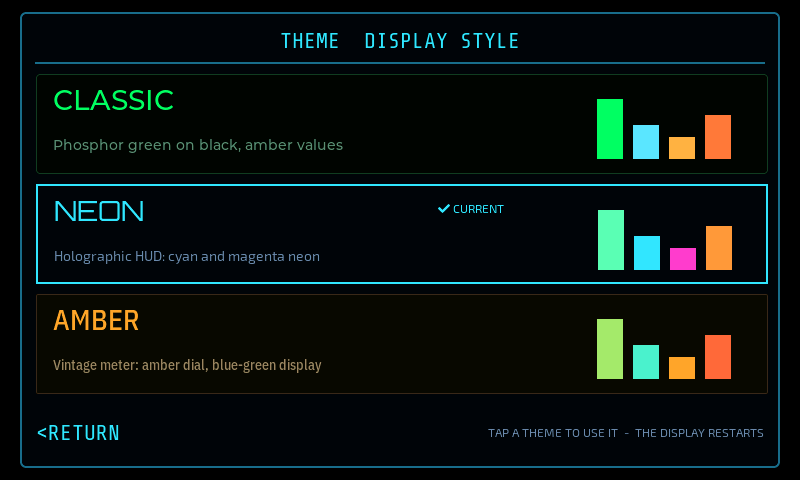
The theme picker.
CLASSIC |
Phosphor green on black, amber values |
NEON |
Holographic HUD: cyan and magenta neon |
AMBER |
Vintage meter: amber dial, blue-green display |
Tap a theme to use it. The display restarts to apply it and reloads its data, which takes about half a minute.
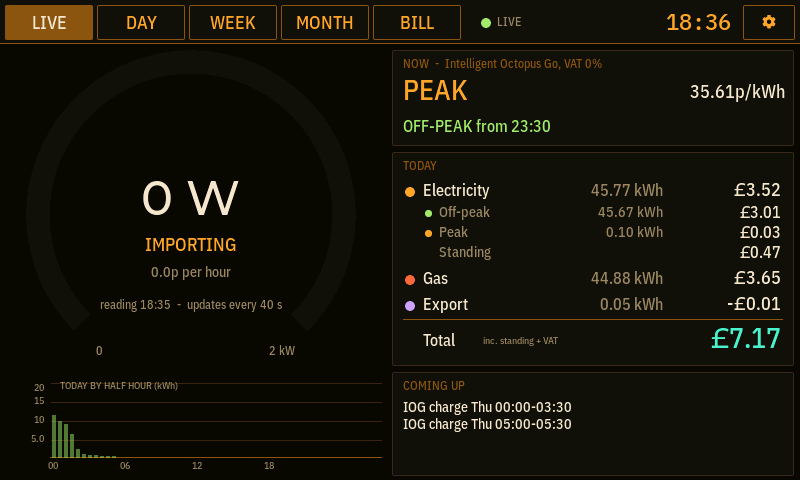
The Live screen in the Amber theme.
Screen Rotation
SCREEN switches between NORMAL and 180 FLIP, for mounting the unit upside down. It applies immediately.
Timezone
The default is London, with automatic British Summer Time. Other zones (European, American, Asian and Australasian cities) are available. Times and day boundaries on every screen use the zone you choose; UK households should leave it on London.
WiFi Networks
Up to three networks are remembered; OctoIHD joins whichever saved network is in range. Adding a fourth drops the oldest. Manage them from the WIFI row (add, or delete with the bin icon) or from the website's WiFi section.
Export and Other Credits
Show export (website) / EXPORT (touchscreen) — show or hide export on the Live, Day, Week, Month and Bill screens.
List other credits (website) — show or hide the OTHER CREDITS list on the Bill screen. Hiding it doesn't change any totals.
Device Information
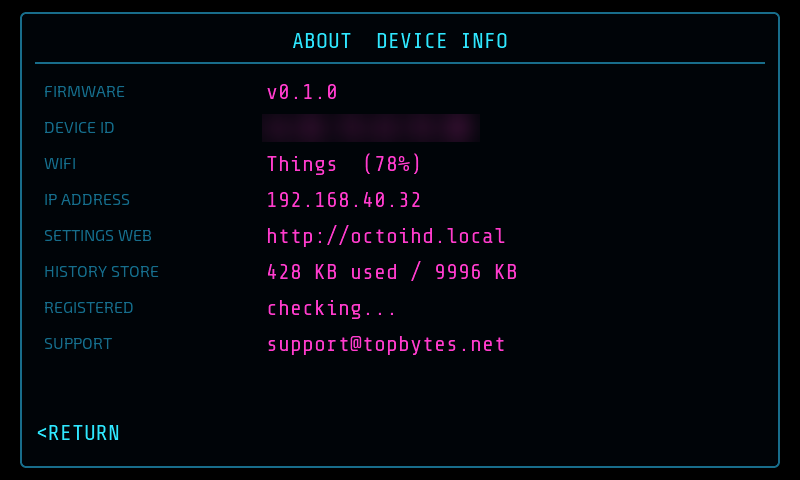
ABOUT (device ID blurred).
Shows the firmware version, Device ID (the unit's MAC address, quoted for support), WiFi network and signal, IP address, the settings website address, how much of the history store is used, registration status and the support email.
The Settings Website
Open http://octoihd.local in a browser on the same network as OctoIHD. If your
device doesn't support .local names, use the IP address shown under ABOUT.
Pairing
To stop anyone else on your network changing settings, each browser must be paired once:
Tap Show code on device. A six-digit code appears on the OctoIHD screen (tap <DISMISS on the screen if you didn't ask for it).
Type the code and tap Pair.
The code is valid for two minutes, and five wrong attempts cancel it. Up to four browsers can be paired at a time. Pairings are forgotten when OctoIHD restarts, so you may be asked to pair again.
The setup hotspot page (used before WiFi is set up) doesn't need a code.
Sections
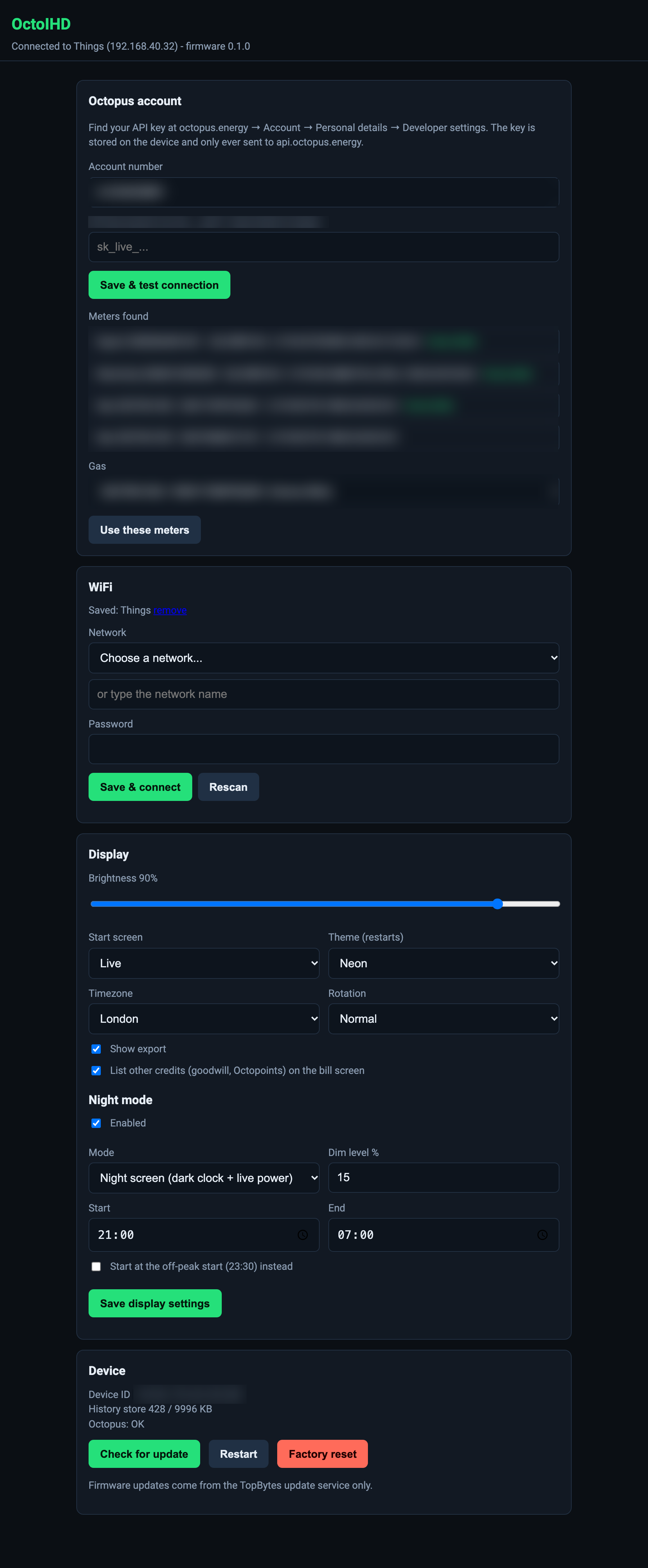
The settings website (account number, meter details and device ID blurred).
- Octopus account
Account number, API key, Save & test connection, the meters found and meter choice.
- WiFi
Saved networks (with remove), choose a scanned network or type a name, password, Save & connect, Rescan.
- Display
Brightness, start screen, theme (restarts the display), time zone, rotation, Show export, List other credits, and night mode: enabled, mode, dim level (5–60%), start, end and Start at the off-peak start (23:30) instead. Tap Save display settings.
- Device
Device ID, history store use and Octopus status, with Check for update, Restart and Factory reset.
Factory Reset
Factory reset on the settings website erases the Octopus account number and API key, all saved WiFi networks, the stored history and all other settings, then restarts OctoIHD into setup mode. Use it before passing the unit on to someone else.